
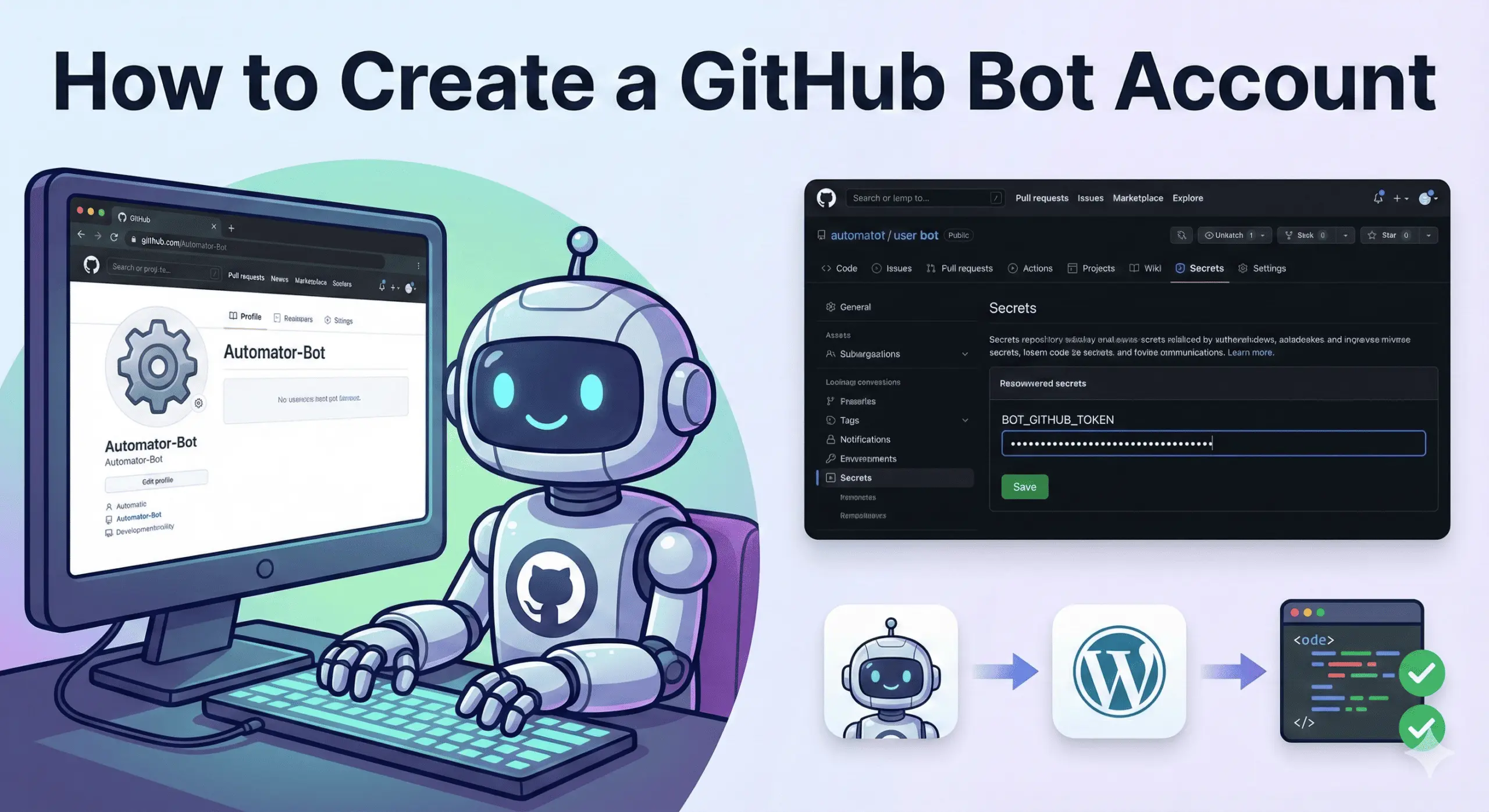
In modern web development, automation is no longer optional. From running CI checks to posting automated code review comments, we expect systems to work for us in the background. To make this happen cleanly and securely on GitHub, you do not need an enterprise plan or a complicated integration.
All you need is a GitHub bot account.
This guide walks through what a bot account really is, why you should use one, and how to set it up step by step in a way that is easy to understand and safe to maintain.
What is a GitHub Bot Account?
A “GitHub bot account” is not a special feature or account type.
It is simply a regular GitHub user account that is created and used only for automated tasks. This account has its own username, email address, and authentication token, just like any other user. The difference is that no human actively uses it day to day. Instead, it is controlled by CI pipelines, scripts, or third-party automation tools.
You might already be using GitHub Actions or external CI services. A bot account gives those systems a clear and dedicated identity.
Why You Should Use a Bot Account
It is technically possible to use your personal GitHub account for automation. But in practice, that approach causes problems over time.
Here is why a bot account is the better choice.
Better Security
If an automation token is ever leaked, only the bot account is affected. Your personal account, repositories, and organization access remain safe.
Clear Audit Trail
When a bot comments on a pull request or updates a status check, it is obvious that the action was automated. Seeing projectname-bot leave a comment is far clearer than seeing your own name responding to your own code.
Controlled Permissions
A bot can be given access to only one repository or a limited set of permissions. Your personal account usually has far broader access, which you do not want to expose to scripts.
Real-World Example: WordPress Coding Standards
Consider an everyday WordPress workflow.
You maintain a theme or plugin and want every pull request to be checked against WordPress Coding Standards. You might use tools such as VIP Go CI or rtCamp’s code-review tooling to automate this.
If these tools run using your personal credentials, every automated review comment appears as if you wrote it yourself. That quickly becomes confusing and unprofessional.
A bot account solves this cleanly. The bot becomes your automated reviewer, and your personal account stays focused on actual development.
Step-by-Step Guide
Step 1: Create the Bot User
- Open an Incognito or Private browser window so you stay logged into your main account elsewhere.
- Go to github.com and sign up for a new account.
- Choose a clear username, such as
yourproject-botoryourname-ci. - Use a unique email address.
Tip:
If you use Gmail, you can use the plus trick. For example, [email protected] counts as a unique email for GitHub while still landing in your primary inbox.
Once created, this account is your automation identity.
Step 2: Give the Bot Access to Your Repository
The bot now needs permission to work on your project.
- Log in to your main GitHub account.
- Open the repository you want to automate.
- Go to Settings → Collaborators.
- Click Add people, then invite the bot’s username.
- Log into the bot account and accept the invitation.
If the repository belongs to an organization, you can instead add the bot to a team and give it Write access. This is often cleaner for larger projects.
Step 3: Generate a Personal Access Token
Automation should never use a password. GitHub uses Personal Access Tokens instead.
While logged in as the bot account:
- Open Settings → Developer settings.
- Go to Personal access tokens → Tokens (classic).
- Click Generate new token (classic).
- Select only the scopes the bot needs.
For most CI and code review workflows, these are sufficient:
repoworkflow
- Generate the token and copy it immediately.
Once you leave the page, GitHub will never show this token again.
Step 4: Store the Token as a Repository Secret
Now connect the bot to your workflows.
- Switch back to your main account.
- Open the repository.
- Go to Settings → Secrets and variables → Actions.
- Click New repository secret.
- Name the secret something clear, such as
BOT_GITHUB_TOKEN. - Paste the Personal Access Token as the value and save.
This token is now securely stored and can be used by GitHub Actions or external CI tools without being exposed in code.
Using the Bot in Your Workflow
In your workflow configuration, you simply reference the secret. For example, in a GitHub Actions file, tools can authenticate using the stored token.
From this point forward, any automated comments, reviews, or status updates will appear as coming from the bot account, not you.
A GitHub bot account is a small setup with a big payoff.
It improves security, keeps your activity history clean, and makes your automation easy for everyone on the team to understand. Once configured, it quietly works in the background, running checks, posting reviews, and enforcing standards without getting in your way.
Leave a Reply